
I recently purchased a Ricoh Theta S 360 video camera, which lets you dive into the world of 360 video for less than $350. Compare this to the thousands of dollars that you could spend to put together a 360 video rig using GoPro cameras (which I hope to do one day).
The great thing about the Ricoh Theta S is that the video is already stitched together, so you don’t need to purchase any extra editing software. One big drawback to the Theta S is that the audio is not very high quality.
It’s because of that low-quality audio that I feel the need to run my 360 videos through Adobe Premiere video editing software in order to lower the volume. This also lets me trim off any extra footage at the beginning and end of my video, or it lets me stitch together multiple videos.
I haven’t tried to edit 360 video in Final Cut X as of yet, but I assume the same workflow will work.
SEE ALSO: Here’s my guide to the best 360-degree video cameras.
Edit 360 video in Premiere
Here’s the process I use to get video off of the Theta S, edited in Premiere and onto YouTube or Facebook.
1. Shoot your 360 video using the Ricoh Theta S.
2. Import your video to your computer. I use Image Capture on my Mac to import videos.
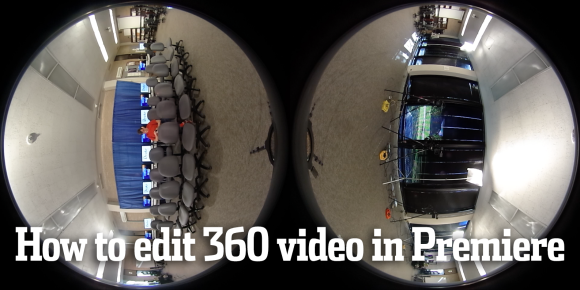
3. Use the Ricoh Theta computer app to convert your video from two spherical images (as seen in the photo above) to one 360 immersive video. Just drag it into the app and then press start.

4. Edit this converted video in Premiere. You can edit together multiple 360 video clips, lower the audio, add different audio and even add text. Just don’t change any of the dimensions.
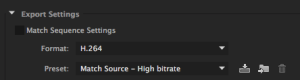
5. Go to File>Export Media and export the video from Premiere. In the export settings, choose H.264 as the format and choose “match source – high bitrate” for the preset.
6. This newly-exported video is almost ready to post to YouTube or Facebook. Unfortunately, the metadata that tells those channels that this is 360 video has been stripped out in Premiere. But Google has a tool to add it back in.
Download the 360 Video Metadata app for Mac or Windows and follow the instructions on this page.

7. Your converted video is now ready to upload to YouTube or Facebook, where you upload just like any other video. I usually post mine as a private post on Facebook at first, just to make sure everything is working fine. When I see it’s working as 360 video, I’ll repost or change the sharing settings.
Here’s an example of 360 video posted to Facebook.
Good luck with your 360 video. It’s really rather simple to shoot and post using an all-in-one solution like the Ricoh Theta S.
Hey Chris,
Does the video usually take a considerable amount of time to upload to YouTube?
Thanks,
Kody
I would say no. If the video is long or in 4K, then that will up the amount of time. But they haven’t take considerable time for me.
I was able to edit a video in Adobe Premiere Elements? Exported as XAVC-S with presets MP4-H264 3840X2160 29.97p 200Mbps, but I have 2 spheres. I’ve tried the metadata app but i get an error and will not run. Windows smart screen was turn on , so i turned it off and I still get an error.
Was the video two spheres when looking at it in Premiere? I convert mine from two spheres to a flat video before editing in Premiere.
I am shooting 360 photos with the theta s and compiling them into an h264 movie for fb and yt. The resolution i have exported in is 4k x 2k which worked perfect however for some reason they are not crystal sharp like i can view them on theta app or in Premier. I also tried eporting 3072×1536 but the Image wasn’t lining up . What is the best qequence settings ?(for fb and yt seperately) Thanks
Hey Chris,
Thanks for the post. I am looking for ways to add the metadata to the video file without the youtube injection tool. I have been able to add the exif metadata for single images in Nuke by changing the make and model to the Ricoh Theta, which works fine when uploaded to facebook. However, it seems much more complicated for videos and I have been unable to find what it is exactly that the injecter program adds to the file. Any ideas?
Thanks in advance. : )
So I merged 360fly 4k video that I shot at 2880 x 2880 30 fps and exported a flattened (equirectangular) video using the 360fly director program. What resolution does my sequence in Adobe premiere have to be so that I can export it, be able to upload it and view it on YouTube/Facebook in 360? Basically looking for the best possible resolution and a pre-set for my future 4k 360 videos.
Hi Chris – just wanted to say ‘THANKS VERY MUCH’ – that was an awesome tutorial that saved me a lot of time, producing 360 from a Theta in the middle of an event. Muchly appreciated 🙂
Chris,
I’m trying to create a show that will capture in 360, but want to have the option to show in 2D to a viewing audience where I can manipulate where the focus will be; like typical edited programs. Basically I’d like to edit the footage I will be shooting on a 360 camera, edit it as flat image where I can select parts of the scene I want to use and edit as I would normally would, for 2D.
Also, is it possible to use that 2D edited sequence after its done and have premier convert it back to a 360 viewing keeping the 2D edits?
Thanks